Developing Extractors
The most common use case for extractors is to export data from a DCC to be used in another tool.
Tip
Starting from v4.3.8, Tik Manager can access extractors from <common>/plugins/maya/extract/ folder. This is the suggested location for any custom extractors as they will be immediately available with the entire team and won’t be affected by Tik Manager version updates.
However, an extractor doesn’t necessarily have to ‘extract’ anything. It can be used to perform any kind of operation on the data, such as creating a report or sending an email.
Hello World
Below is an example of an extractor that simply prints “Hello World!” to the console.
from tik_manager4.dcc.extract_core import ExtractCore

# The Collector will only collect classes inherit ExtractCore
class HelloWorld(ExtractCore):
    """Print hello world."""

    nice_name = "Hello World"
    color = (0, 0, 255)
    optional = False

    def _extract_default(self):
        """Extract method for any non-specified category"""
        print("************")
        print("Hello World!")
        print("************")
In this example, we have created a class called HelloWorld that inherits ExtractCore. This way, the Collector will be able to find and execute it.
We have defined the nice_name and color attributes. These are used to display the extractor in the UI.
The optional attribute is used to define whether the extractor is optional. If it is set to True, a checkbox will appear in the publisher UI next to the extractor, allowing the user to skip this extractor.
Finally, we have overridden the _extract_default method. This method will be called when the category is not specified. In other words, this extractor will perform the same action regardless of the category.
Saving this code into a .py file and placing it in the extract folder of the relevant DCC (in this example, any DCC will work) will make it available to the Tik Manager.
Warning
An extractor will be available to a category ONLY if it is assigned from the settings. For more information on how to assign extractors to categories, please refer to the Category Definitions.
Tip
The ExtractCore class already wraps the _extract_default method with a try-except block, which will catch any exceptions. Giving the chance to the user see the error message in the UI and proceed with the remaining extractors and publishing if the user decides to do so.
Detailed Explanation
Import the ExtractCore class from the tik_manager4.dcc.extract_core module.
from tik_manager4.dcc.extract_core import ExtractCore
Make sure the Extractor class inherits the ExtractCore class.
class HelloWorld(ExtractCore):
Define the nice_name attribute. This attribute is used to display the extractor in the UI.
nice_name = "Hello World"
Define the color attribute. This attribute is used to color the extractor in the UI.
color = (0, 0, 255)
Define the optional attribute. This attribute is used to define whether the extractor is optional. The default value is False.
optional = False
Override the _extract_default method. This method will be called when the category is not specified.
def _extract_default(self):
    print("************")
    print("Hello World!")
    print("************")
Selective Extraction for Categories
Extractors can be category-sensitive, meaning that the same extractor can behave differently depending on the category. For example, let’s say we want to print “Hello Animation World!” only when the category is “Animation.”
from tik_manager4.dcc.extract_core import ExtractCore

# The Collector will only collect classes inherit ExtractCore
class HelloWorld(ExtractCore):
    """Print hello world."""

    nice_name = "Hello World"
    color = (0, 0, 255)

    def __init__(self):
        super().__init__()
        self.category_functions = {"Animation": self._extract_animation}

    def _extract_default(self):
        """Extract method for any non-specified category"""
        print("************")
        print("Hello World!")
        print("************")

    def _extract_animation(self):
        """Extract method for Animation category"""
        print("************")
        print("Hello Animation World!")
        print("************")
In this example, we have added a new method called _extract_animation. We map the category to the method in the __init__ method by setting the category_functions key.
The Collector will call the _extract_animation method when the category is “Animation” and the _extract_default method for any other categories.
Detailed Explanation
We need to define the category_functions dictionary in the __init__ method. The key is the category name, and the value is the method that will be called when the category is specified.
def __init__(self):
    super().__init__()
    self.category_functions = {"Animation": self._extract_animation}
Define the _extract_animation method. This method will be called when the category is “Animation”.
def _extract_animation(self):
    print("************")
    print("Hello Animation World!")
    print("************")
Saving Files
Now, let’s enhance our example with a more practical task. Suppose we want to publish a .txt file containing our message.
from tik_manager4.dcc.extract_core import ExtractCore

# The Collector will only collect classes inherit ExtractCore
class HelloWorld(ExtractCore):
    """Save hello world text."""

    nice_name = "Hello World"
    color = (0, 0, 255)

    def __init__(self):
        super().__init__()
        self.category_functions = {"Animation": self._extract_animation}
        self.extension = ".txt"

    def _extract_default(self):
        """Extract method for any non-specified category"""
        file_path = self.resolve_output()
        with open(file_path, "w") as file:
            file.write("Hello World!")

    def _extract_animation(self):
        file_path = self.resolve_output()
        with open(file_path, "w") as file:
            file.write("Hello Animation World!")
In this example, we have added the extension variable. This variable defines the file extension of the output file. We have also utilized the resolve_output method. This method returns the path where the file should be saved.
Detailed Explanation
Define the extension attribute. This attribute is used to define the file extension of the output file.
extension = ".txt"
resolve_output is getting inherited from the ExtractCore class. This method returns the path where the file should be saved.
file_path = self.resolve_output()
UI Elements
In some cases, we may need to draw UI elements to obtain user input. For instance, let’s say we want the user to define the message to be saved in the .txt file.
from tik_manager4.dcc.extract_core import ExtractCore


# The Collector will only collect classes inherit ExtractCore
class HelloWorld(ExtractCore):
    """Save hello world text."""

    nice_name = "Hello World"
    color = (0, 0, 255)

    def __init__(self):
        global_exposed_settings = {
            "message": {
                "type": "string",
                "value": "Hello World!",
                "tooltip": "Message to be saved in the .txt file."
            }
        }
        exposed_settings = {
            "Animation": {
                "emoji": {
                    "type": "combo",
                    "value": ":)",
                    "items": [":)", ":(", ":D", ":P"],
                    "tooltip": "Emoji to be added at the end of the message."
                },
            }
        }
        super().__init__(exposed_settings=exposed_settings, global_exposed_settings=global_exposed_settings)
        self.category_functions = {"Animation": self._extract_animation}
        self.extension = ".txt"

    def _extract_default(self):
        """Extract method for any non-specified category"""
        file_path = self.resolve_output()
        text_to_save = self.global_settings.get("message")
        with open(file_path, "w") as file:
            file.write(text_to_save)

    def _extract_animation(self):
        file_path = self.resolve_output()
        base_text = self.global_settings.get("message")
        anim_settings_obj = self.settings.get("Animation")
        emoji = anim_settings_obj.get("emoji")
        text_to_save = f"{base_text} {emoji}"
        with open(file_path, "w") as file:
            file.write(text_to_save)
In this example, we define two dictionaries and feed them into the base class.
The exposed_settings is for specific settings per defined category.
The global_exposed_settings specifies settings common for all categories.
Each key in the global_exposed_settings dictionary represents a row in the extractor’s layout. The keys in the exposed_settings dictionary represent categories, where each value is another dictionary representing a row in the extractor’s layout.
The Tik Manager employs the same UI definition methodology across settings, metadata, and extractor UI.
Note
Any exposed settings (global or not) default value can be overridden with a metadata with the same key. For more information on metadata, please refer to the Metadata section in the user guide.
Bundles
In some cases, we may want to create a bundle of files instead of a single file.
from pathlib import Path
from tik_manager4.dcc.extract_core import ExtractCore


# The Collector will only collect classes inherit ExtractCore
class HelloWorld(ExtractCore):
    """Save hello world text."""

    nice_name = "Hello World"
    color = (0, 0, 255)
    optional = True
    bundled = True
    bundle_match_id = 1234

    def _extract_default(self):
        """Extract method for any non-specified category"""
        bundle_directory = Path(self.resolve_output())
        bundle_directory.mkdir(parents=True, exist_ok=True)
        message_file_path = bundle_directory / "message.txt"
        info_file_path = bundle_directory / "info.txt"
        message_context = "Hello World of Bundled Extractor!"
        info_context = "This is the info file for the Hello World Extractor."
        with open(message_file_path, "w") as file:
            file.write(message_context)
        with open(info_file_path, "w") as file:
            file.write(info_context)
In this example, we have set the bundled attribute to True. This informs the Collector that this extractor will create a bundle, and self.resolve_output() will return a directory path instead of a file path.
The bundle_match_id attribute is used to match the bundle with the corresponding ingestor. In this specific example, the bundle will be matched with the bundle ingestor that has the bundle_match_id set to 1234.
Note
Since each element of a bundle can be ingested separately, the requirement of a matching bundle is quite rare and applies only to specific cases. Where we want to treat the whole bundle as a complete package when ingesting.
Metadata access
It is possible to access the sub-project metadata from the extractor.
from tik_manager4.dcc.extract_core import ExtractCore

# The Collector will only collect classes inherit ExtractCore
class HelloWorld(ExtractCore):
    """Print hello world."""

    nice_name = "Hello World"
    color = (0, 0, 255)
    optional = False

    def _extract_default(self):
        """Extract method for any non-specified category"""
        mode = self.metadata.get_value("mode")
        print("************")
        print(f"Hello {mode} World!")
        print("************")
This simple example demonstrates how to access the metadata value named “mode” and use it in the extractor. In this case, if the subproject that we are publishing from is and asset it will print “Hello asset World!”. If it is a shot it will print “Hello shot World!”.
Miscellaneous
set_message method can be used to deliver a message to the user when they click the extractor icon button. (This circle button is located next to the extractor name in the UI.)
As a use case example, it can be used in the __init__ method to inform the user about the extractor’s purpose.
def __init__(self):
    super().__init__()
    self.set_message("This extractor will print 'Hello World!' to the console.")
UI definition Rules
Tik Manager uses a dictionary to define the layout of the UI elements. The goal is to allow TDs a framework that they can create unified UIs across different DCCs without writing any UI code.
Under the hood, the UI items are getting populated on a form layout. Each key in the dictionary represents a row in the layout.
- Available dictionary keys:
display_name: The name displayed on the UI.
type: The type of UI element. Refer to the list of Available Data Types
value: The default value of the UI element.
items: Items populated in a list widget. Compatible with combo, list, and dropList types.
tooltip: Tooltip for the UI element.
- disables: List of UI elements disabled or enabled based on this element’s value.
- Format: List of lists where each sublist contains two elements:
Condition under which the UI element is disabled.
Name of the element to be disabled.
minimum: Minimum value for the UI element. Applies to integer and float types.
maximum: Maximum value for the UI element. Applies to integer and float types.
placeholder: Placeholder text for the UI element. Applies to string type.
object_name: Name of the widget object to be created.
Among these keys, only type and value are mandatory. However, if the items key is not defined for the combo type, the widget will have only one item with the value key, which may not be very useful.
Here is an example of a layout definition and how it will look:
{
"testCheck: ": {
    "display_name": "Test Check",
    "type": "boolean",
    "value": True,
    "disables": [
    [True, "testString"]
    ]
},
"resolutionTest": {
    "display_name": "Resolution test",
    "type": "vector2Int",
    "value": [1024, 768]
},
"testString": {
    "type": "string",
    "value": "",
    "placeholder": "(Optional)"
},
"testCombo": {
    "type": "combo",
    "items": [
    "Superman",
    "Still",
    "Walking"
    ],
    "value": "Still"
},
"testRadio": {
    "type": "combo",
    "items": [
    "radioGa",
    "radioGu",
    "radioGuGu"
    ],
    "value": "radioGuGu",
    "disables": [
    [
        0,
        "testSpinnerInt"
    ]
    ]
},
"testSpinnerInt": {
    "type": "spinnerInt",
    "value": 12,
    "minimum": 0,
    "maximum": 100
},
"testSpinnerFloat": {
    "type": "spinnerFloat",
    "value": 341.23,
    "minimum": 0.0,
    "maximum": 999.9
},
"testMulti": {
    "type": "multi",
    "value": {
    "override": {
        "type": "boolean",
        "value": True,
        "object_name": "resolution_override",
        "disables": [
        [
            False,
            "resolutionX"
        ],
        [
            True,
            "resolutionY"
        ]
        ]
    },
    "resolutionX": {
        "type": "spinnerInt",
        "value": 1920,
        "minimum": 1,
        "maximum": 999999
    },
    "resolutionY": {
        "type": "spinnerInt",
        "value": 1080,
        "minimum": 1,
        "maximum": 999999,
        "object_name": "resolutionY"
    }
    }
},
"testSecond": {
    "type": "multi",
    "value": {
    "multiX": {
        "type": "float",
        "value": 1920,
        "minimum": 1,
        "maximum": 999999
    },
        "multiY": {
            "type": "integer",
            "value": 1080,
            "minimum": 1,
            "maximum": 999999
        }
    }
},
"testList": {
    "type": "list",
    "value": ["Is", "This", "The", "Real", "Life"]
}
}
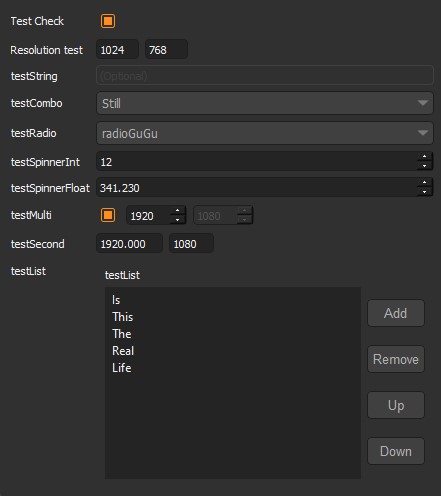
Available Data Types
boolean: Single checkbox.
string: Line text input.
combo: Dropdown menu (items should be provided with items key).
integer: Integer value field (no arrows).
float: Float value field (no arrows).
spinnerInt: Integer spinner.
spinnerFloat: Float spinner.
list: List of strings (Creates a list widget with add, remove, up, and down buttons).
dropList: List widget which accepts drops.
categoryList: Special list widget for category selection.
validatedString: Custom QLineEdit widget to validate entered values.
vector2Int: Vector input with 2 integer fields.
vector2Float: Vector input with 2 float fields.
vector3Int: Vector input with 3 integer fields.
vector3Float: Vector input with 3 float fields.
pathBrowser: Path definition widget with browse button for folders.
fileBrowser: Path definition widget with browse button for files.
subprojectBrowser: Browser widget for Tik Manager sub-projects.
multi: If this type is selected, the value key should be a list of dictionaries. Each dictionary must have type and value keys similar to the main dictionary. This will create a nested layout.
group: Similar to multi, but the nested layout will be grouped with a separator.