Project
Project section contains settings that are specific to the currently set project. This area is only accessible to users with Admin permission level.
There are 3 sub-sections in the Project section:
Preview Settings
Category Definitions
Metadata
Preview Settings
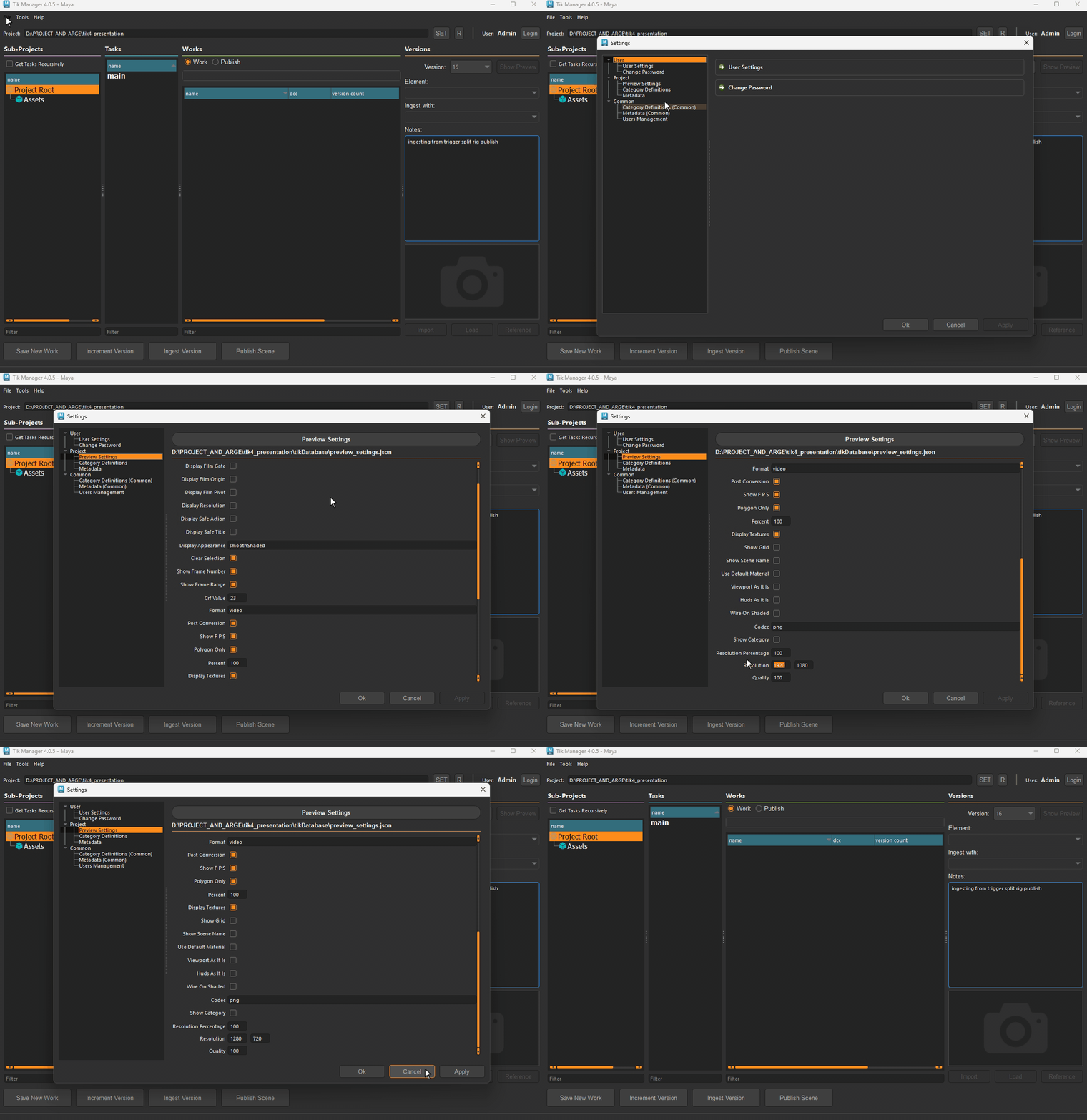
Note
Not all of the settings listed in here available to all DCCs.
Category Definitions
This section is used to define the Avaliable categories for the project. When a new task is created, only the categories defined here will be available for selection.
In addition to the category name, admins can define Validations and Extracts for each category from here.
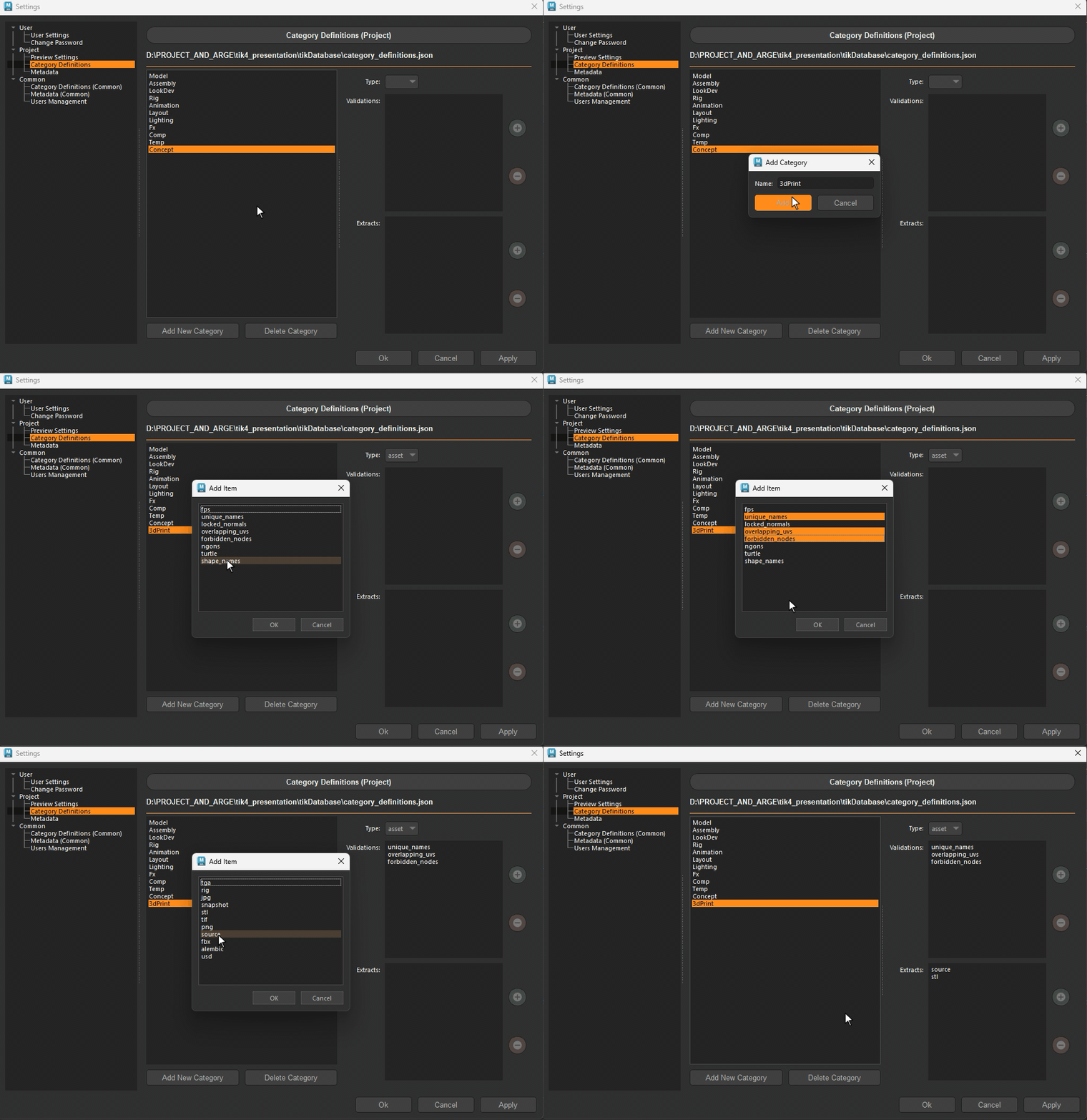
Adding a New Category: 1. Click on the Add New Category button. 2. Enter the name of the category. 3. Click on the Add button. 4. Define the type of the category - Leave it blank to make it available to all types.
Note
Validations are used to sanity check the data (usually scene) before publishing. TDs can define custom validators easily using the template provided. All validations are appear in the add list automatically.
Note
Extracts are essential parts of publishes. They extract data and store it as an element along with the publish. Extracts can vary from a simple file copy to a complex data extraction from the scene. All extracts are appear in the add list automatically.
Hint
An extract can produce a single file or a folder (bundle) with multiple files. An extract can also be used for other purposes such as sending a file to a server or dispatching an e-mail.
Hint
Defining a category type will make it available only for that type of sub-projects. For example, if we define a category as asset, it will only be available for the asset tasks. Leaving it blank will make it available for any task types.
Adding Validations and Extracts:
Select the category from the list.
Click on the + button next to the validation or extract area.
Select the validation(s) or extract(s) from the list.
Attention
In the lists, ALL validations and extracts will appear for ALL available DCCs. However, during publish, depending on the DCC the not applicable ones will be pruned. For example, we can define png extract for the model category. This extract will be available for Photoshop publishes from the model category, but will not be available for Maya (unless there is a png extractor for Maya too.).
Metadata
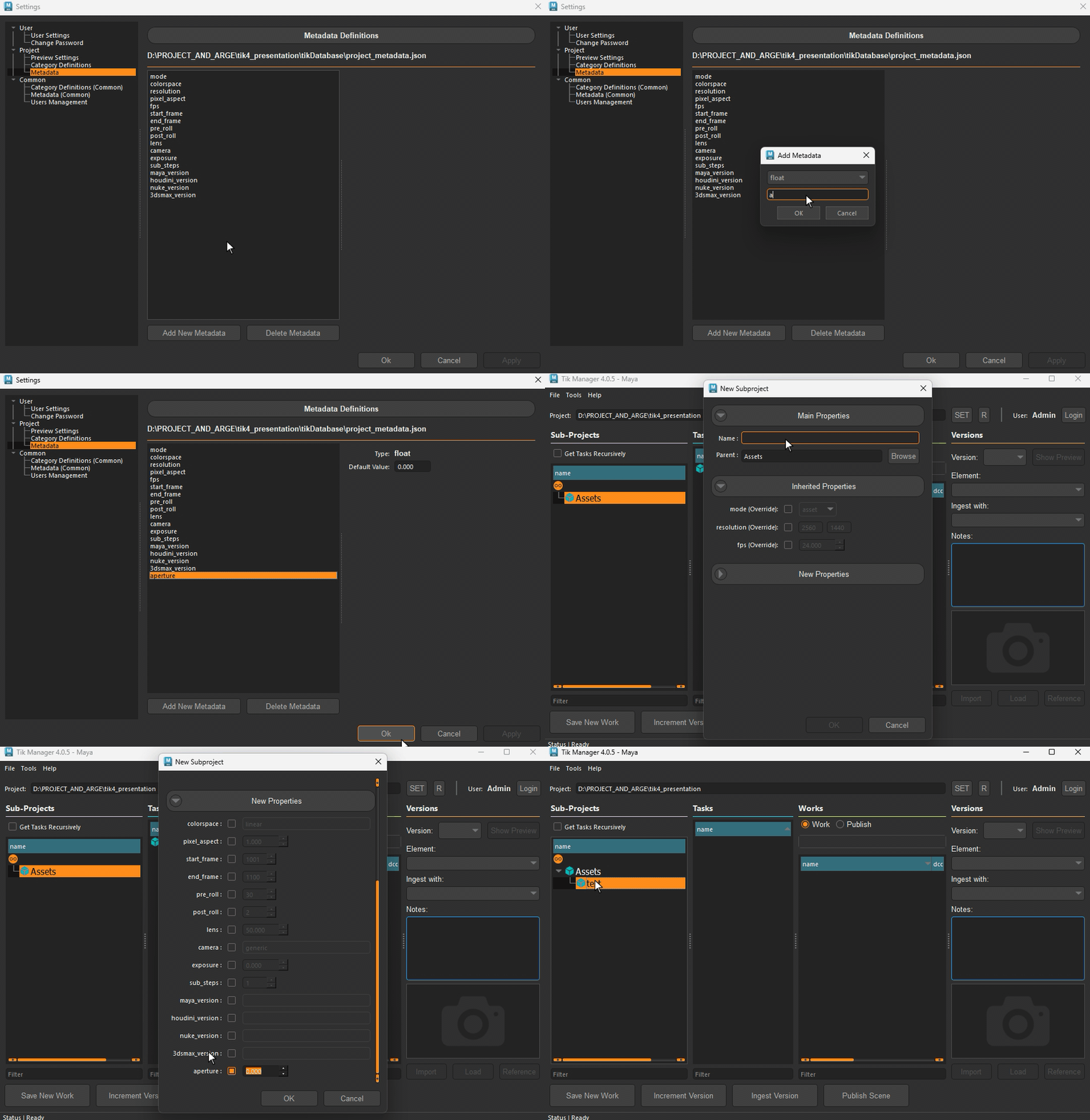
This section is used to define the Avaliable metadatas for the project. When a new sub-project created, only the metadata defined here will be available for it.
To create a new metadata, click on the Add New Metadata button, select the value type and enter the name of the metadata.
After creating the metadata, it is possible to assign a default value to it from the right side column.
Hint
All Metadatas are passed down to the validatiors and extractors. Any validator or extractor can use these metadatas to make decisions. For example, a validator for checking the animation ranges can use the start_frame and end_frame metadatas to determine the range.
Project Settings
Attention
New in v4.4.0
All other project specific settings are available in the Project Settings section.
Branching Mode
This setting defines the branching mode for the project. It can be set to either Active Branches or Passive Branches.
Passive Branches
Passive Branching is the classic way of managing versions in a project. Each version is a separate entity, and artists need to manually switch between versions when referencing assets in their scenes. Alternatively, if studio-specific tools are used, they may automate this process.
Active Branches
Active Branching introduces two always-updated, long-living versions of your assets: LIVE and PRO. These branches act as continuously evolving points that artists can rely on without needing to manually switch versions or use studio-specific tools.

Attention
Active Branches are designed to simplify the workflow by providing a clear distinction between ongoing development (LIVE) and production-ready assets (PRO). This allows artists to focus on their work without worrying about version management.
How Active Branches Work:
All usual publish versions are still there. Nothing changes if the classic workflow preferred.
LIVE is updated automatically every time new version published. No extra steps.
PRO is for production-approved versions only. It’s updated only when a supervisor (or admin) promotes a version.
Both LIVE and PRO are tracked, with their own internal databases, so you always know exactly which version they’re based on.
When artists reference a LIVE or PRO branch in their scenes, they automatically stay up-to-date — no version switching, no re-referencing.
Sample Active Branches Workflow:
- Let’s say you’re a rigger working on a character:
You publish your first version of the rig. It becomes the LIVE branch automatically.
Since this is the initial release, you (or your supervisor) promote it to PRO right away.
You create a test scene and reference the LIVE version to continue iterating.
An animator references the PRO version into a shot.
You make updates to the rig, publish again — LIVE is instantly updated.
You test your changes in your test scene (which always references LIVE).
Once you’re happy, your supervisor promotes the new version — and now PRO is updated too.
Animator’s scene will instantly get the latest approved rig, with zero manual steps.